About Destiny Help
Wherever you are in Destiny, help is just a click away.
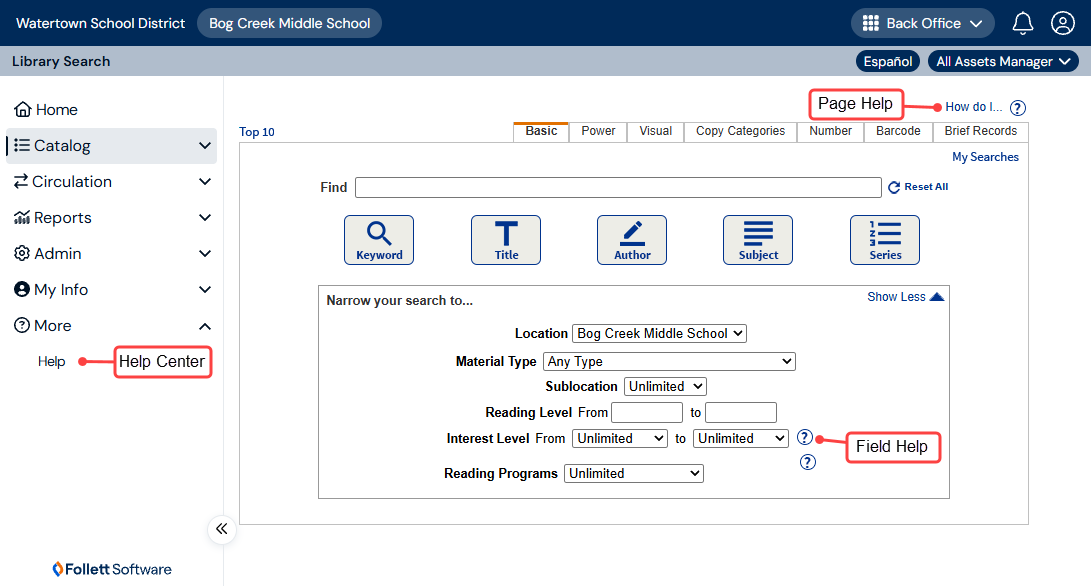
The Destiny Help Center gives step-by-step instructions for all Destiny Back Office features and functions.
To access the Destiny Help Center, from the sidebar on any page in Destiny Back Office, select More > Help.
Destiny offers quick access to help for many of its pages and fields.
- To learn more about the page you're on, click
 , available at the top of most pages.
willsss - To get more information about a specific field or section of a page, click
 next to it.
Navigate the Destiny Help Center
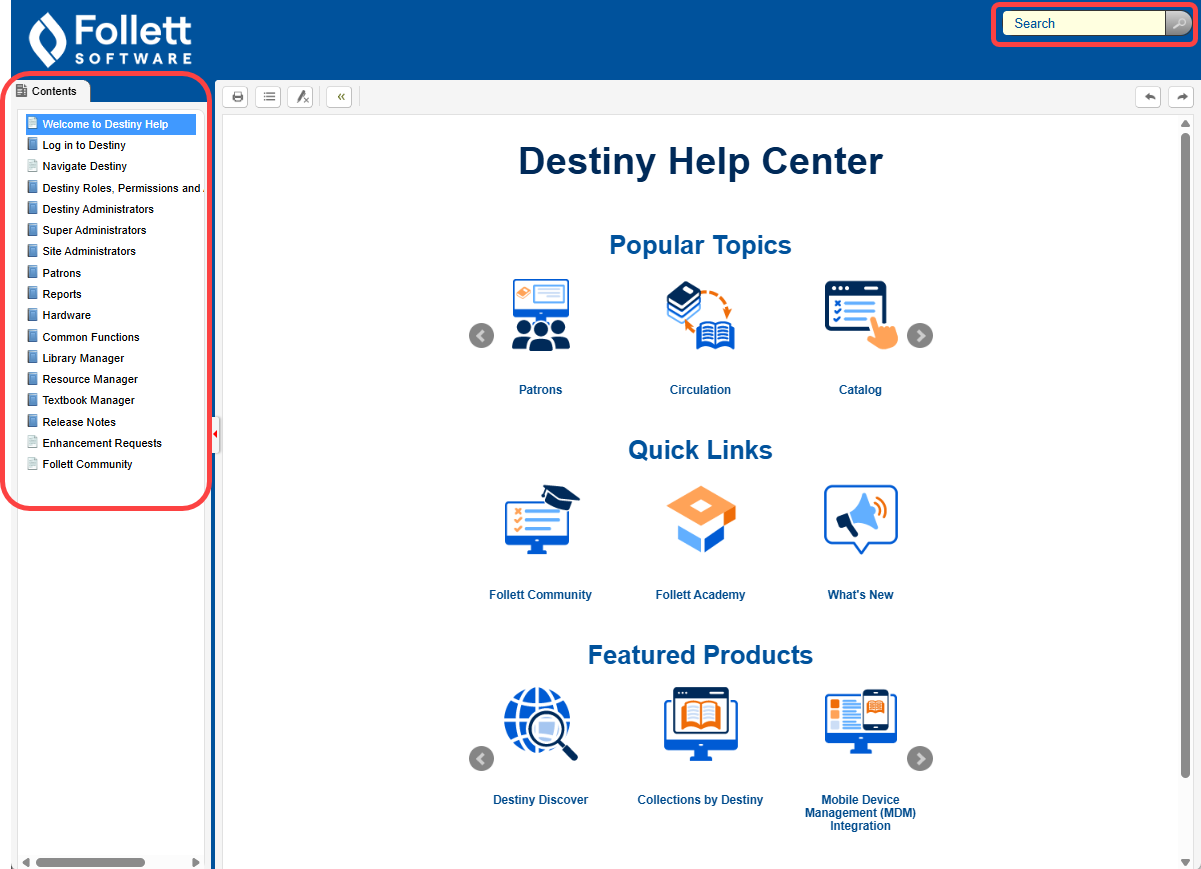
From the Welcome page, you can quickly access:
- Popular Topics: Selection of commonly-sought Help topics.
- Quick Links: Videos and quick reference guides via Follett Community, Follett Academy training opportunities, and "What's New in the Follett Destiny Educator Platform".
- Featured Products: Help for related Destiny products and features.
To find help on a topic, you can search or use the Table of Contents.
Search
To search, type a keyword(s) into the Search bar, and click  , or press enter or return on your keyboard.
Here are some tips for searching:
|
Important: Wildcard characters (* and ?) are not supported in search, and searches are not case sensitive. |
- When you want to find:
- Topics that include multiple words in any order, type them in the Search bar; and is inferred.
- A phrase with words that appear in an exact order, use " " (quotation marks) around the words.
- Topics that include one word but not another, separate the excluded words or phrases with a ^ (carat) or an ! (exclamation point).
- More than one term, type either or or | (pipe symbol) between the words or phrases.
- When you want to combine searches, use parentheses.
- When you type more than one word in the Search bar, connect them with any of these:
- and (not case sensitive)
- + (plus symbol)
- & (ampersand)
|
Example: Type "Resource Policies" and (Loan or Department). Results include topics with the term "Resource Policies" and either "Loan" or "Department". |
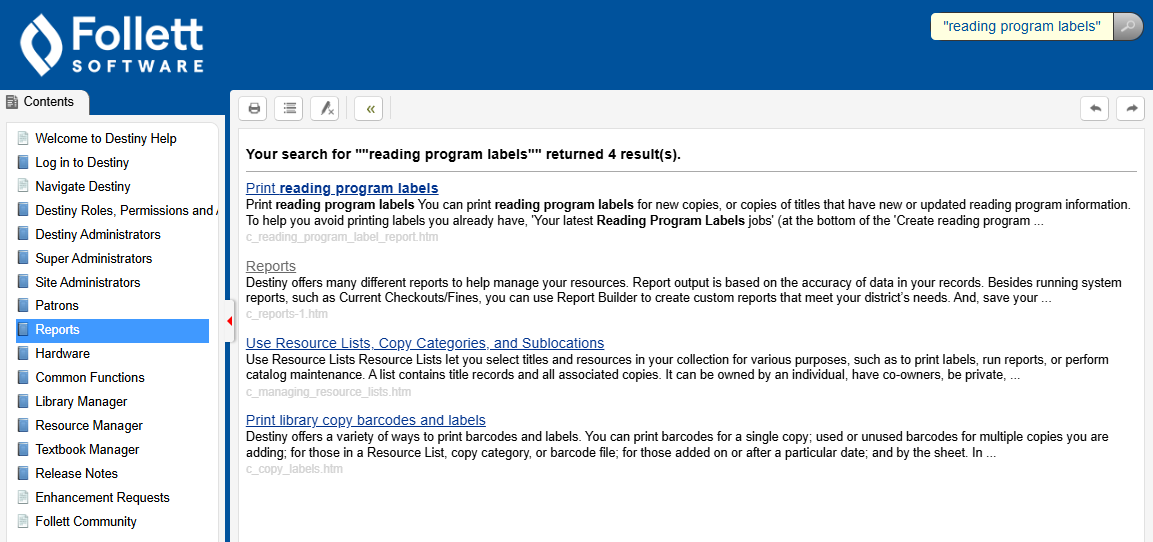
Search results are listed in order of relevance, with the most relevant topic at the top. Click a title to see that topic. Search terms appear in bold font in search results and are highlighted when you open a topic.
Use the toolbar

From the top of any Help page, access the toolbar options:
|
Icon |
Function | ||
|---|---|---|---|

|
|
Access your browser's print function.
|
|

|
Expand All/Collapse All |
When you are in a topic that includes expandable sections, click the Expand all icon to expand or collapse all the sections at once. | |

|
Remove Highlights |
When you access a Help topic from search results, the search term(s) are highlighted. Click the Remove Highlights icon to remove them. | |

|
Return to previous page | Return to the last page you visited. | |

|
Previous/Next |
Click the Previous or Next icon to see the topic before or after the one you're looking at in the Table of Contents. | |