Generate a Textbook Adoptions report (Resource Manager)
The Textbook Adoptions report gives you access to adoption information for your textbooks.
Choose to list textbooks adopted by your state or district during a certain year or range of years, those in current adoption, or out-of-adoption. Include titles only, or titles and items.
Consider running this report prior to removing textbook titles by batch update.
To generate the report:
- Select Reports > Resource Reports.
- Under Catalog -- Resources & Items, click Textbook Adoptions. The report setup page appears.
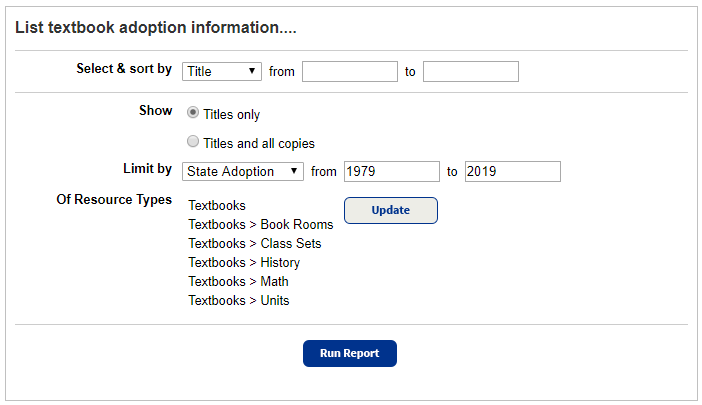
- Do any of the following:
- Next to Select & sort by, select Title, Publisher, or Vendor.
Note: If you sort by vendor or publisher, titles without vendor or publisher information are not included.
- (Optional) Enter a range in the from and to fields.
Notes:
- You can limit to one title, publisher, or vendor, or a range.
- All titles, publishers, or vendors: Leave both fields blank.
- One title, publisher, or vendor: Enter it in both fields.
Important: Enter the name of the primary textbook, not the supplement. - Up to and including a specific title, publisher, or vendor (alphabetically): Leave the from field blank, and enter it in the to field.
- A specific title, publisher, or vendor, and all those after it (alphabetically): Enter it in the from field, and leave the to field blank.
- You cannot use wild cards (?, *) in ranges.
- You can limit to one title, publisher, or vendor, or a range.
- Next to Show, select either:
- Titles only
- Titles and all copies: Includes individual copy details
- Use the Limit by drop-down to list:
- State Adoption: Textbooks that your state adopted in a particular year or range of years.
- District Adoption: Textbooks that your district adopted in a particular year or range of years.
- End Adoption: Textbooks that are in current adoption or out-of-adoption.
- State Adoption: Textbooks that your state adopted in a particular year or range of years.
- Next to the Limit by drop-down, enter a range in the from and to fields.
Note: You can limit to one adoption date, or a range.
- All adoption dates: Leave both fields blank.
- One adoption date: Enter the same date in both fields.
- Resources adopted before and on the date in the to field: Leave the from field blank, and enter a date in the to field.
- Resources adopted on a date and later: Enter a date in the from field, and leave the to field blank.
- To filter the report to branches of the Textbooks template, next to Of Resources Types, click Update.
- Next to Select & sort by, select Title, Publisher, or Vendor.
- Click Run Report. Report Manager opens.
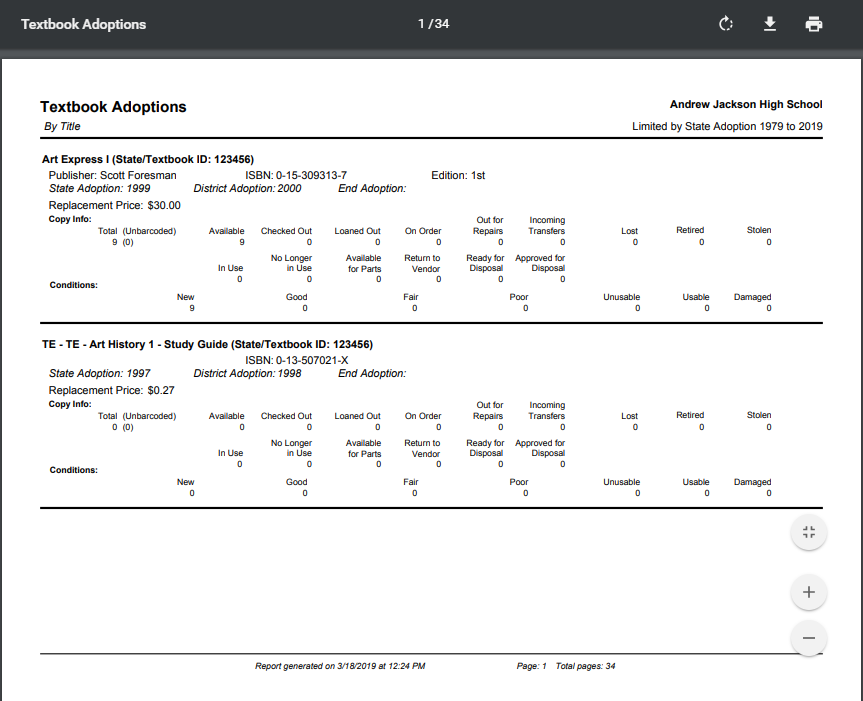
- When the report status is Completed, click View. The report output appears.
 Additional Details
Title Information includes:
- Title
- State/Textbook ID
- Publisher
- ISBN (if more than one, the first one listed)
- Edition
- State Adoption year
- District Adoption year
- Year the adoption ends
- State/Textbook ID
Copy Information includes:
- Replacement price (If there is no replacement price in the title record, a double dash (--) appears.)
- Total number of copies
- Number of copies available
- Number of copies checked out
- Number of copies loaned out
- Number of copies on order
- Number of copies out for repairs
- Number of copies in transit
- Number of copies lost
- Numbers of new, good, fair, poor, and unusable copies.
List Totals include:
- Number of titles listed
- Calculated replacement cost for all the copies of the titles listed (regardless of copy status)
- Total number of copies
- Total number of available copies
- Total number of copies checked out
- Total number of copies loaned out
- Total number of copies on order
- Total number of copies out for repairs
- Total number of copies in transit
- Total number of copies lost
- Total number of copies in each condition
Copy Details include:
If you choose to Show Titles and all copies:
- The copy details include a count for each Status, and each copy's barcode number and condition.
- The copies are listed in order of copy status (Available, Checked Out, Loaned Out, On Order, Out for Repairs, In Transit, and Lost) and then by the copy barcode number.
- If the copy is Checked Out, it includes the student's name, patron type, barcode number, and due date.
- If the copy is In Transit, it includes the sending school's name.
- If the copy is Lost, it includes the date it was lost. If it was lost by a patron, it includes the patron's name, patron type, and barcode number.