Generate a Textbook Title & Copy List report
The Textbook Title & Copy List report helps you keep track of all the textbooks in your school or district. The reported information can be as broad or as narrow as you want it to be. It can include just a list of titles, or all the titles and copies you have.
You can determine which copies have been checked out, examine lists of lost copies, and print title lists based on vendor or publisher information to distribute to your purchasing personnel.
To generate the report:
- Select Reports > Resource Reports.
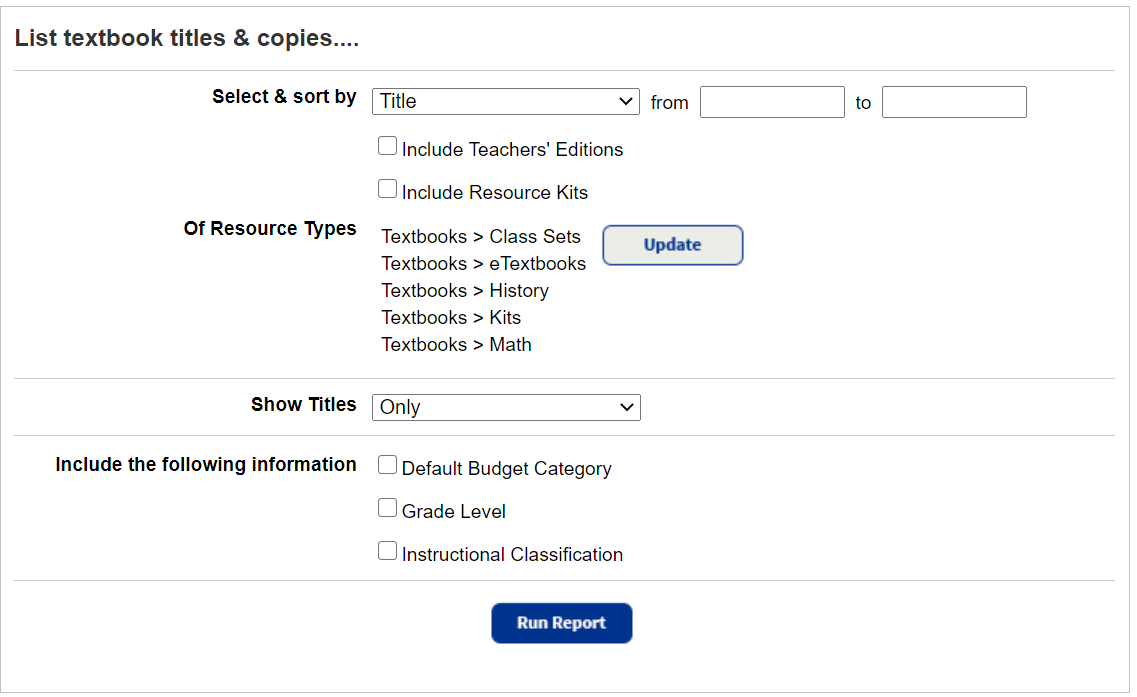
- Under Catalog -- Resources & Items, click Title & Copy List. The report setup page appears.
-
Do any of the following:
- If you log into the district, use the For drop-down to select either the district or an individual site.
Note: If you select the district, the report is limited to the first 10,000 qualifying titles and copies.
- Use the Select & sort by drop-down to select a method to identify the titles included in the list.
- If you select Title, Publisher, or Vendor, enter a range in the from and to fields.
Notes: - If running a report on a specific title, enter the name of the primary textbook, not the supplement.
- You can limit to one title,publisher, or vendor, or a range.
- All titles, publishers, or vendors: Leave both fields blank.
- One title, publisher, or vendor: Enter the same name in both fields.
- Up to and including a specific title, publisher, or vendor (alphabetically): Leave the from field blank, and enter a name in the to field.
- A specific title, publisher, or vendor and all those after it (alphabetically): Enter a name in the from field, and leave the to field blank.
- You cannot use wildcards (?, *) in ranges.
- If there is no vendor or publisher information included in the title record, titles without vendor or publisher information are in a section named Vendor or Publisher undefined.
- If you select ISBN, scan or enter the ISBN – with or without dashes – in the field that appears next to it.
- If you select Copy Category, Default [title] Budget Category, Copy Budget Category, Instructional Classification, or Subject, select one from the drop-down.
Note: Copy Category is not available for a district report.
- If you select Title, Publisher, or Vendor, enter a range in the from and to fields.
- To include teacher's editions, resource kits, or both, select the checkboxes.
- To include copy information:
- Select one of the options in the Show Titles drop-down.
- Filter out copies for certain conditions by deselecting any of the Include Conditions checkboxes that appear.
Notes:
- If you include Teachers' Editions or Resource Kits, they appear underneath the primary textbook title, regardless of the supplement's title.
- If you include copy information, copies are listed in order of copy status (Available, Checked Out, Loaned Out, On Order, Out for Repairs, Incoming Transfers, Lost, Retired, Stolen, In Use, No Longer in Use, Available for Parts, Ready for Disposal, Approved for Disposal, and In Quarantine) and then by the copy barcode number.
- To filter the report to branches of the Textbooks template, next to Of Resources Types, click Update.
- If you log into the district, use the For drop-down to select either the district or an individual site.
- Click Run Report. Report Manager opens.
- When your report status is Completed, click View. The report output appears.

 Additional Details
Title Information includes:
- Title
- State/Textbook ID
- Author
- ISBN (if more than one, the first one is listed)
- Edition
- Replacement price
If there is no replacement price in the record, a double dash (--) appears.
Copy Information includes:
- Total number of copies
- Number of copies available
- Number of copies checked out
- Number of copies loaned out
- Number of copies on order
- Number of copies out for repairs
- Number of copies in transit
- Number of copies in quarantine
- Number of copies lost
- Numbers of new, good, fair, poor, and unusable copies
Copy Details includes:
When you select one of the Show Titles options that includes copy information:
- The copy details include:
- A count for each Status
- Each copy's barcode number and condition
-
If the copy is checked out, it includes:
- The patron's name
- Patron status
- Barcode number
- Due date
- If the copy is lost, it includes the date it was lost.
- The number of copies in conditions that you excluded from the report appears in parentheses next to their Status.
Totals
The List Totals at the bottom include:
- Number of titles listed
- Calculated replacement cost for all the copies of the titles listed (regardless of copy status)
- Total number of copies
- Total number of copies available
- Total number of copies checked out
- Total number of copies loaned out
- Total number of copies on order
- Total number of copies out for repairs
- Total number of copies in transit
- Total number of copies in quarantine
- Total number of copies lost
- Number of copies in each condition