Easy Editor
Whether you have a little or a lot of cataloging experience, you can use Destiny Library Manager's Easy Editor to add and edit bibliographic records. Most of the information you enter into the Easy Editor comes from a book's title and copyright pages. If needed, you can toggle between the Easy Editor and MARC Editor to add, edit, or duplicate a title record.
To add a record:
- On the Add Title, Edit Title, or Duplicate Title page, click the ISBN field.
- Scan the ISBN barcode on the book's back cover.
- Add data to any other field.
- Click Save Title.
Brief Title tab
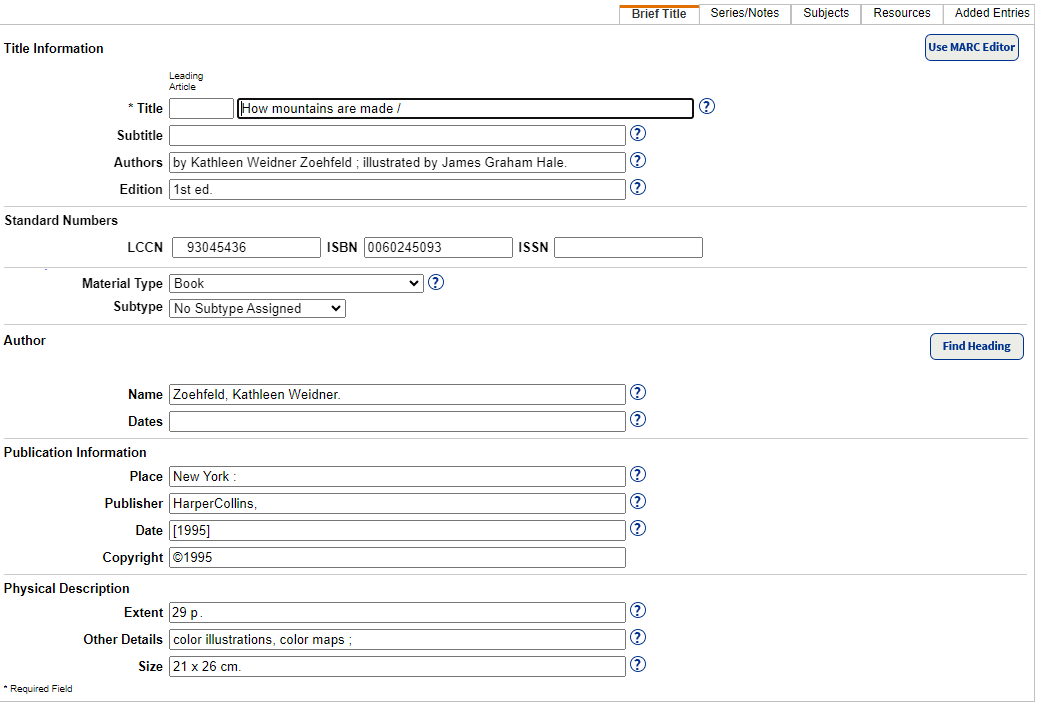
The Brief Title tab creates a brief record and contains basic information, such as title, standard numbers, material type, author, publication information, and physical format. The fields correspond to MARC tags 000 through 300.
|
Note: If you plan to recon the records with Alliance Plus, you only need to enter title, a standard number (LCCN, ISBN, or ISSN), and select the correct material type. Alliance Plus adds the rest of the fields. |
| Section | Field | Contents | Tips | |
|---|---|---|---|---|
|
Title Information
|
Title | Main title | Usually only the first word of the main title and proper nouns are capitalized. | |
| Subtitle | Additions to the main title | |||
| Authors | People responsible for title (author, narrator, illustrator, etc.) | |||
| Edition | Edition information for the title | |||
| Material Type |
Material type that most closely matches the item being cataloged.
|
If you choose any of the following, you can also select from the Subtype drop-down:
|
||
|
Author
|
Name | Primary person responsible for title | Enter name with the last name first (for example, Canfield, Jack). | |
| Date | Any dates associated with the name. Typically these are the dates of birth and death (for example, 1902-1986 or 1968-). | |||
Publication Information
|
Place | City of publication or distribution | ||
| Publisher | Name of publisher or distributor | |||
| Date | Date of publication or distribution | |||
| Copyright | Enter the copyright date | Enter the date as ©year; for example, ©2023 | ||
| Physical Description | Extent |
Number of pages, volumes, playing time, etc. |
The ending punctuation depends on the information you enter.
|
|
| Other Details | Other physical details of the item | |||
| Size | Item's dimensions |
Series/Notes tab
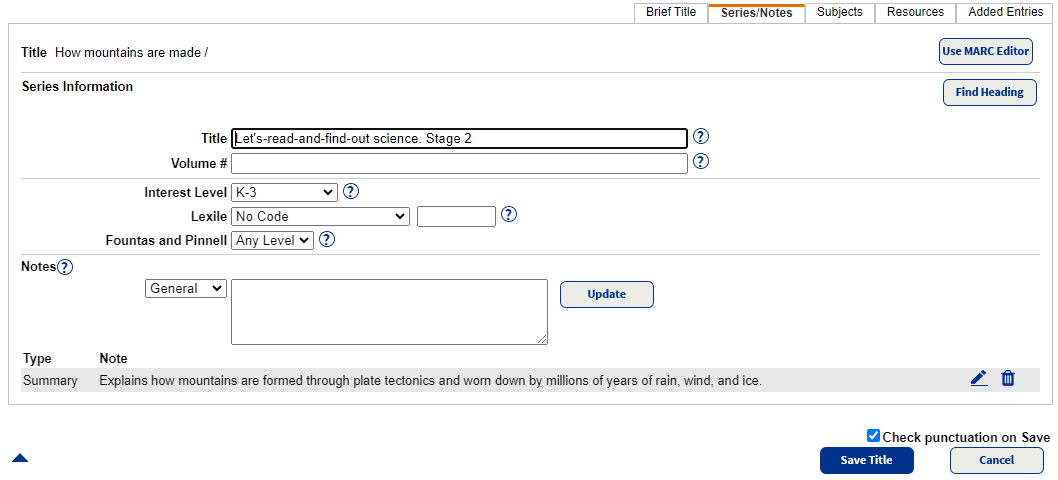
The Series/Notes tab provides information about the title's series and volume, notes, and audience.
Notes include additional information about a title's contents. The words in these notes are added to the keyword index, and, thus, provide better access through keyword searches. Enter a general note, a summary note, the interest grade level, or study program information. You can often locate this information on a book's copyright page.
| Section | Field | Contents | Tips |
|---|---|---|---|
|
Series Information |
Title | Title of the series | If there is a volume entered, the Series title ends with space semi-colon. |
| Volume | Title's position in the series | ||
| Interest Level | Interest grade level | ||
| Lexile | Lexile Code (selected from the drop-down), and Lexile Measure for the title | ||
| Fountas and Pinnell | Fountas and Pinnell Level for the title | ||
| Notes | Information about the contents of the title |
If your library participates in either the Accelerated Reader or Reading Counts! Reading Program Services, enter a reading level, point value, or test number in the 526 tag using the Marc Editor.
Subjects tab
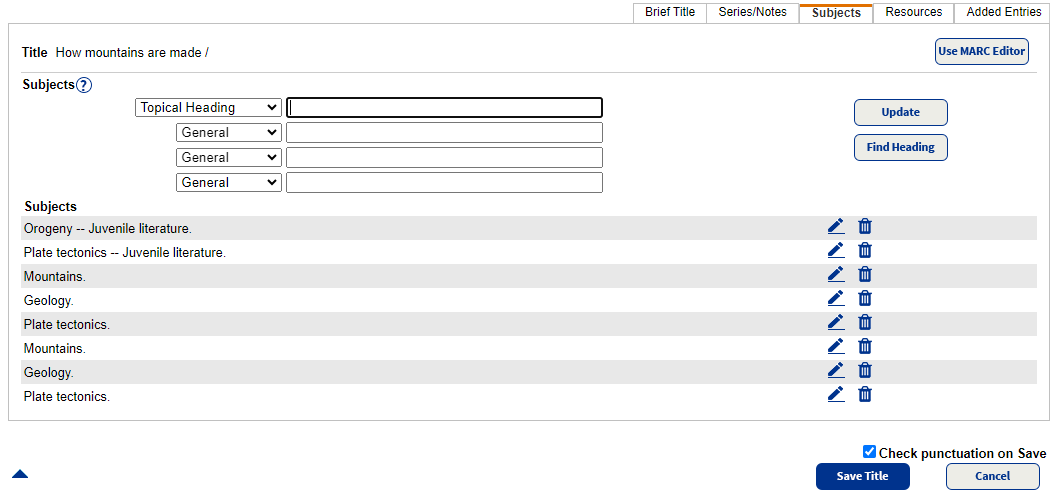
Use the Subject tab to maintain subjects for the title, which helps your patrons find titles with a common topic. In the first drop-down, select the heading that matches the subject's primary term. If the subject needs additional definition, you can select up to three sub-headings.
To maintain consistency, click Find Heading to access a list of existing subject headings.
|
Notes:
|
Resources tab
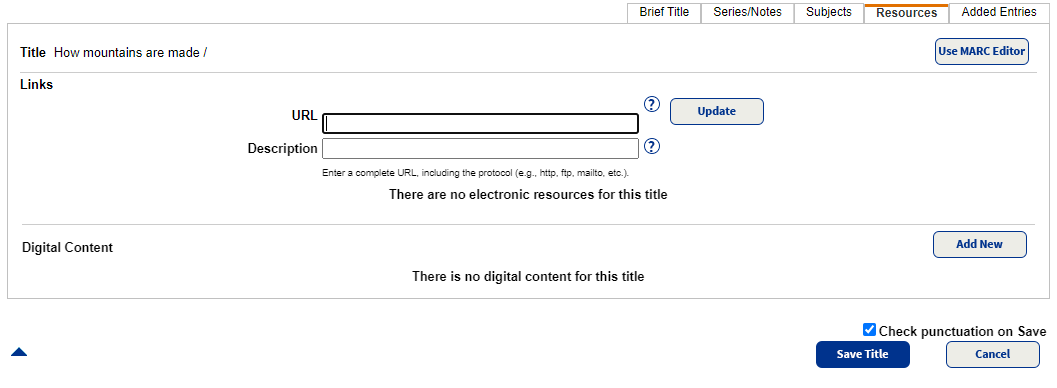
Use the Resources tab to include a URL link and description to a resource, such as author's notes for the title or the illustrators website, or digital content, such as worksheets related to the title.
Added Entries tab
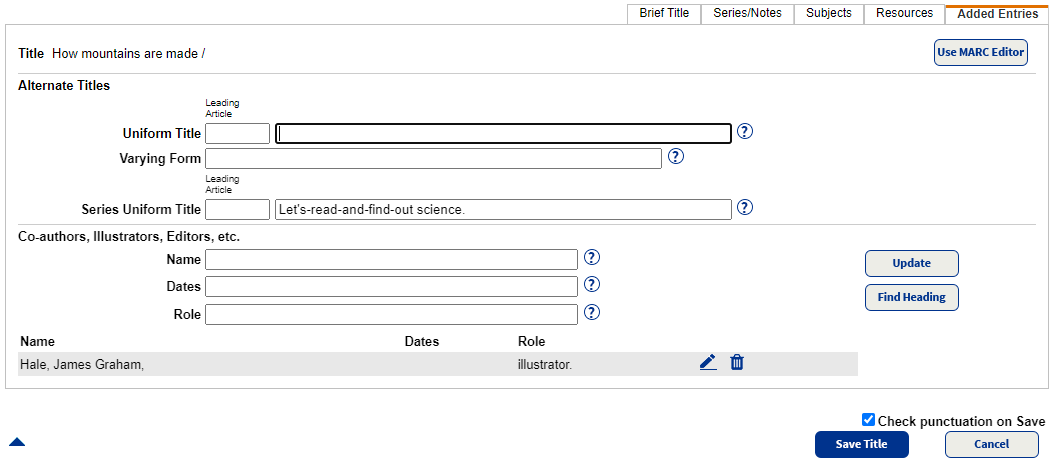
Use the Added Entries tab to enter uniform titles and people (other than the main entry author) associated with the title, such as co-authors, illustrators, compilers, and editors.
| Section | Field | Contents | Tips |
|---|---|---|---|
|
Alternate Titles |
Uniform Title | Distinctive title used for authority control | |
| Varying Form | Alternate form of title | ||
| Series Uniform Title | Distinctive series title used for authority control | ||
| Co-authors, Illustrators, Editors, etc. | Name | Co-author, illustrator, etc. | Enter name with the last name first (for example, Canfield, Jack). |
| Dates |
Dates associated with co-author, illustrator, etc. Typically these are the dates of birth and death (for example, 1902-1986 or 1968-). |
||
| Role | Contributor's role (for example, illustrating, writing, direction). |
After making all updates to a record, do the following:
- To have Destiny Check punctuation on Save, select the checkbox.
- Click Save Title.
- Select any of the Accept Suggestion checkboxes for punctuation .
- Click Save Title.
When you save the record, Destiny checks that you entered the required title information, formats the standard numbers (LCCN, ISBN, ISSN), and verifies you haven't inadvertently duplicated a standard number from another record.